Compatible with Chrome and Edge
Instruction Guide
We have a simple tutorial guide which explains the features of the software extension and what each button inside the extension does. Read our tutorial and welcome guide on how to use the extension to the fullest. Use all the features of this browser software.
If you are interested in other web extensions to install, you might wish to check out the Microsoft Bing Search with Rewards extension.
Microsoft Bing Search with Rewards Extension
It allows you to complete daily offers to get points.
Track the number of points you have currently and the rewards you can redeem with these points.
The ways to get points & get rewarded is search with Bing, browse with Microsoft Edge and shop at the Microsoft and Windows stores to earn rewards.
Sponsored Link:
Other useful extensions
Another extension which would be useful to install is the iCloud bookmarks extension.
It allows to keep your Chrome bookmarks on Windows synced up with the Safari bookmarks on your iPhone, iPad, and Mac.
iCloud will store your website bookmarks so it is accessible even on your iPhone and Mac.
Try these other two extensions and see if it will boost your daily productivity.
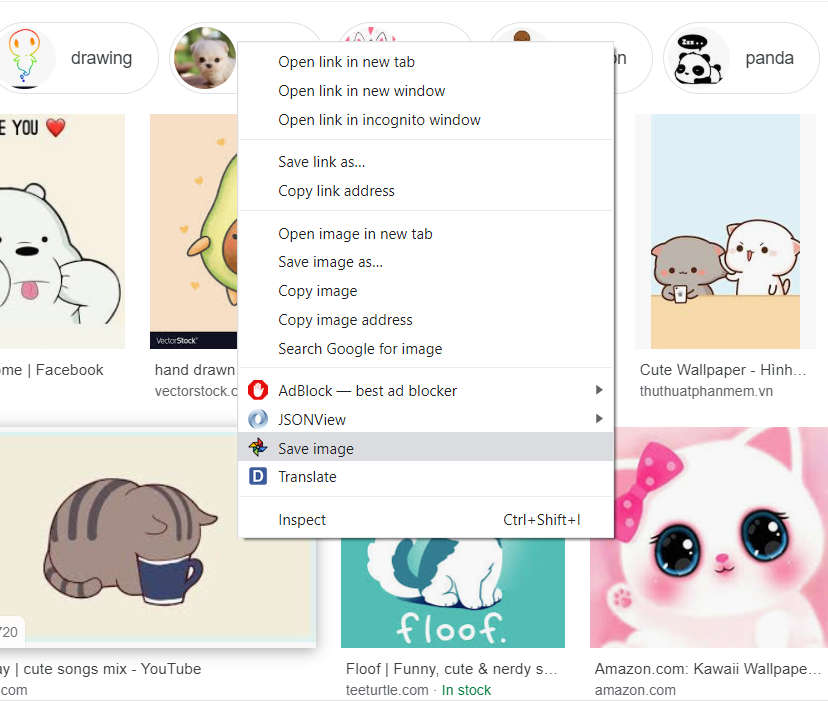
Save any image to your google photo
Features:
Install and open.
- After installing the extension. You use the right click context menu and can save images you want to your Google Photos account.
Google Photos is a photo management app and service developed by Google. The app, which is integrated with the company's other services, allows users to upload, store, search, organize and share their photos through the service. Users can also create collages and animated GIFs using the images in their library.
In addition to its web interface, Google Photos is also available as an Android and iOS app.
Features
Google Photos allows users to automatically upload their entire library of images from their device's gallery or camera roll and store them on Google's servers for free. These images are then accessible via the web interface or mobile apps for viewing, searching, sharing and editing purposes. The app also includes features such as facial recognition and visual search capabilities powered by Google's machine learning technology to help users find photos based on people or objects in them.
You can upload photos to Google Photos from your desktop computer by using the Google Photos Uploader.
Step 1: Download the Google Photos Uploader
The Google Photos Uploader is a tool that allows you to upload your photos to Google Photos from your desktop computer.
Step 2: Install and run the Google Photos Uploader
Once you’ve downloaded the program, double-click on it to begin installation. Follow any prompts that appear on screen until installation is complete. The Google Photos Uploader will appear as an icon in your computer’s taskbar after installation is complete.
Tutorial:
- Install the Extension
- After installing the extension, click on the icon on the toolbar.
Sponsored Link: